How to Create a Seating Chart QR Code for Weddings and Events
Guests scan once at the entrance and find their table on their phone—less crowding, fewer usher interruptions, and a calmer cocktail hour.
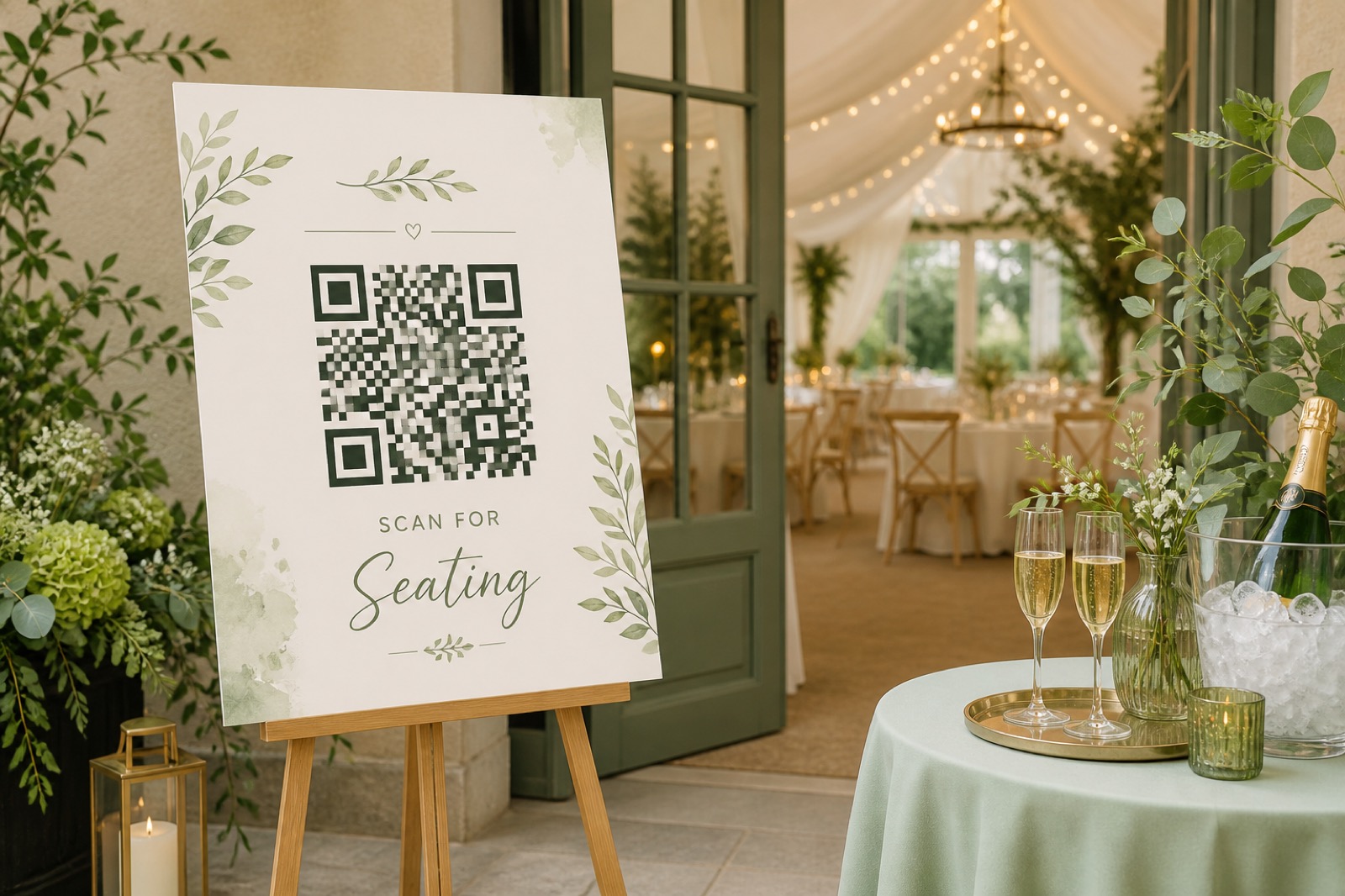
Seating boards create traffic jams. Guests cluster, ushers field the same question fifty times, and the cocktail line stalls. A seating chart QR code sends each guest to a digital list or map on their own phone so the entrance keeps moving.
This guide covers how the pattern works, how to host a chart guests can open without logging in, how to generate a polished static code on Make a QR, and how to handle late changes without reprinting foam boards—as long as you keep the same public URL.
What a seating chart QR actually is
The QR does not store every guest name inside the modules. It stores a link (or similar payload) to wherever you host the chart: Google Sheet, Slides, Canva view link, wedding website page, or PDF.
Because the chart and the code are separate, you can edit names and tables in the hosted file while the printed sign stays the same—if that file keeps the identical share URL.
Why planners use them
- Less crowding — guests fan out instead of hugging one board.
- Late changes — update the sheet or page; reprints of the big board become optional.
- Always in pocket — guests can re-check during the reception.
- Less print waste — one or two QR easels can replace multiple oversized charts.
Pick a chart format
Full list or diagram
Best under ~50–80 guests. Alphabetical names + table numbers (or a simple floor diagram) scroll fine on a phone.
Searchable lookup
Best for 100+ guests. Use a tool or sheet with Find, or a lightweight webpage with a search box, so nobody scrolls past three hundred names.
Create the code in five steps
1. Build and host the chart
- Create the list in Sheets, Slides, Canva, or your event site.
- Share as Anyone with the link can view (or equivalent). Test in a private/incognito window.
- Mobile-format the page: 14pt+ type, dark text on light, no sideways scrolling.
- Sort names alphabetically unless you have a strong diagram.
2. Generate a URL code on Make a QR
- Open Create and choose URL.
- Paste the public chart link.
- Optional: brand colors, module shape, or a small monogram logo—keep contrast high and use the on-page scan check.
- Download PNG for foam boards and invitations; SVG for large-format print.
Make a QR encodes the URL into the pattern. Keep using the same hosted link if you expect edits; if you must change domains later, you will need a new code or a redirect you control on a domain you own.
3. Add a clear call to action
Print “Scan to find your seat” or “Scan for your table” under the code. First-time scanners appreciate numbered steps: open Camera → point → tap → find your name.
4. Size it for distance
- Invitations / programs: at least ~2×2 in (5×5 cm).
- Entrance easels: at least ~4×4 in (10×10 cm), larger if guests stand farther back.
5. Test and place
Scan with iPhone and Android on venue Wi‑Fi and cellular. Place signs at entrances, welcome tables, cocktail areas, and bars. For 150+ guests, use two or three signs so lines do not reform around a single easel.
Last-minute seating changes
- Best case: edit the Google Sheet / page at the same URL. Printed QR unchanged.
- If the file moves: publish a redirect on a domain you control, or regenerate the QR and reprint the small signs (keep a spare foam insert).
- Backup: alphabetical paper list + tablet at check-in for dead batteries and no-signal corners.
Where this shines
Weddings — cocktail and reception doors.
Conferences — badge pickup and plenary seating.
Galas / fundraisers — sponsor table swaps without reprinting programs.
School ceremonies — section assignments for families.
Private dinners — quiet assigned seating without hovering staff.
Accessibility and hospitality
- Large type on the digital chart; phones can pinch-zoom.
- Hybrid: small printed alpha list beside the QR for guests who prefer paper.
- Ushers still matter—tech removes the pile-up, not the welcome.
FAQ
Do guests need an app?
No. Modern phone cameras open the link in the browser.
What if someone cannot scan?
Keep a printed backup and a staffed tablet with the chart already loaded.
Should I still print a huge board?
Optional. Many events keep only a slim alpha list as fallback.